
Spare up right after you tap to pay.
iOS can open Spare Up by itself the moment an Apple Pay purchase goes through, with the amount already filled in. You build it once in Apple's Shortcuts app — we cannot do it for you, because an automation belongs to your phone, not to us.
This opens the app. It does not give money away.
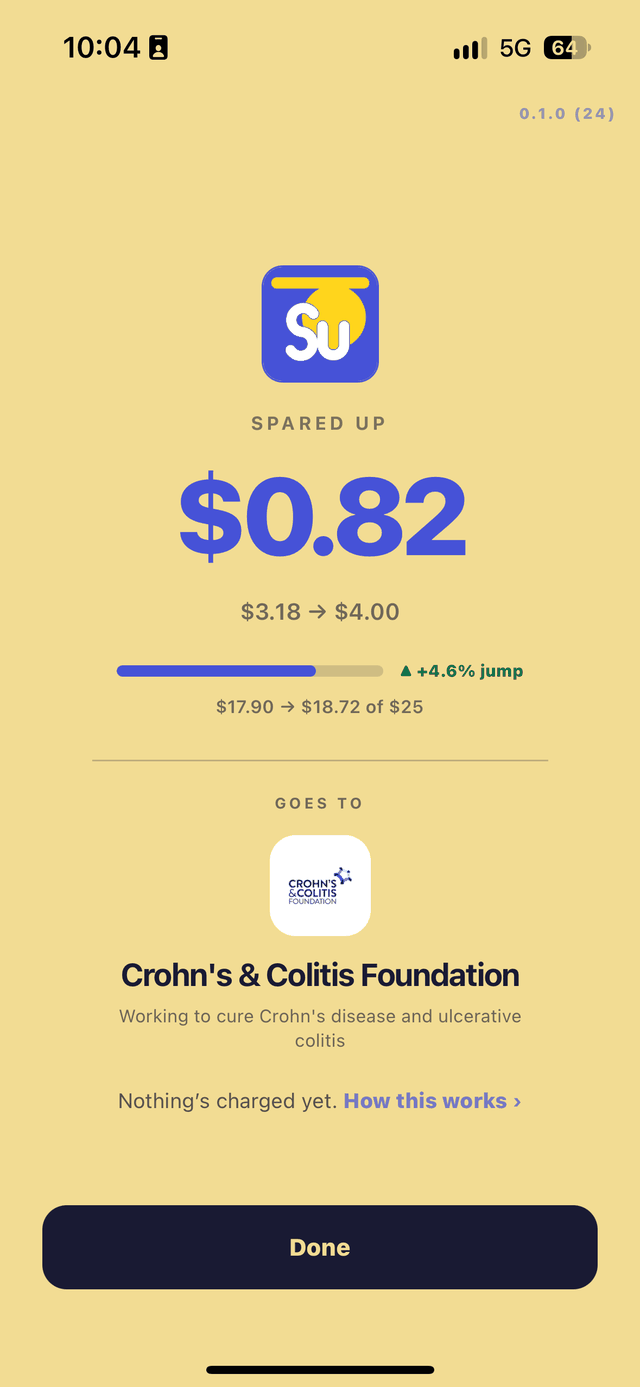
The automation's only job is to put Spare Up in front of you with the number already there. Every round up still ends with you tapping to confirm, exactly as it does when you type the bill yourself. Nothing is charged at the register, and nothing leaves your queue until it reaches $25 and three days have passed.
The orange rings in the screenshots below are ours, marking what to tap. You will not see them on your phone.
01 Open Shortcuts and tap the add button
Shortcuts is Apple's, and it is already on your iPhone. Open it, go to All Shortcuts, and tap +.
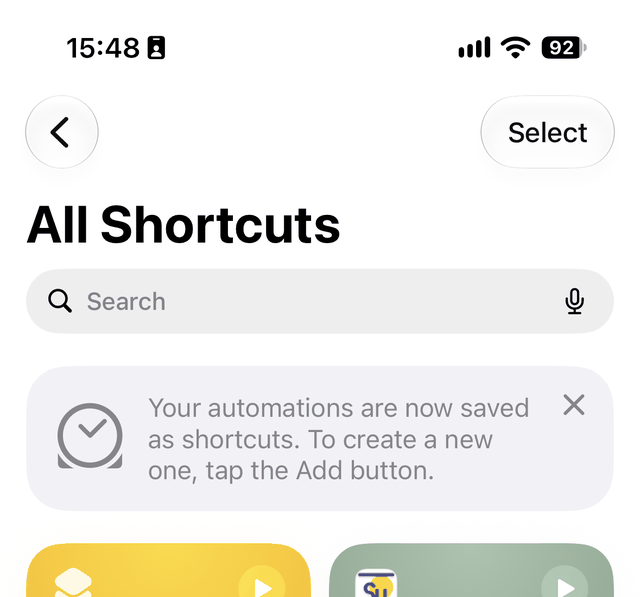

If you have read a guide that told you to look for an Automation tab, that guide is older than your phone. Apple's own banner says what changed: automations are now saved as shortcuts, and you build one by making a shortcut whose first step is a trigger.
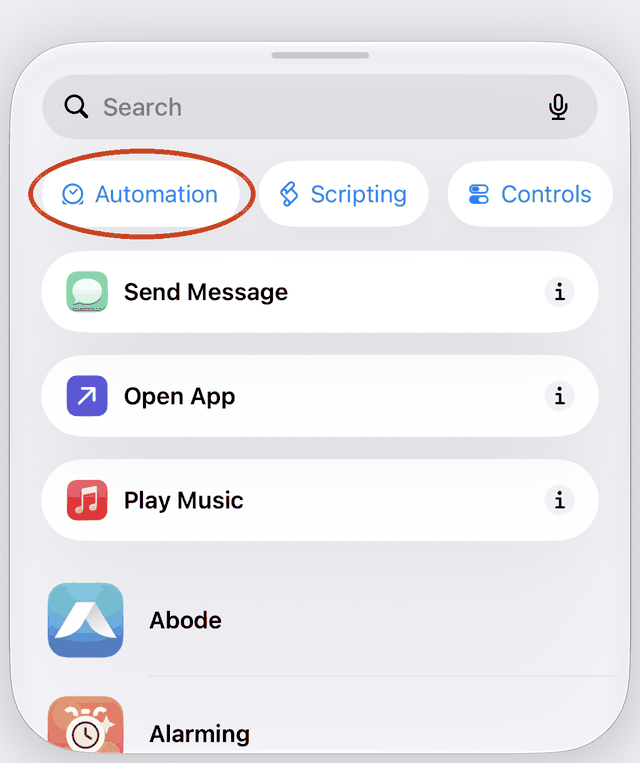
02 Add an action, then filter to Automation
The action sheet opens with a search field and three filters. Tap Automation — that turns the list from “things a shortcut can do” into “things that can start one”.
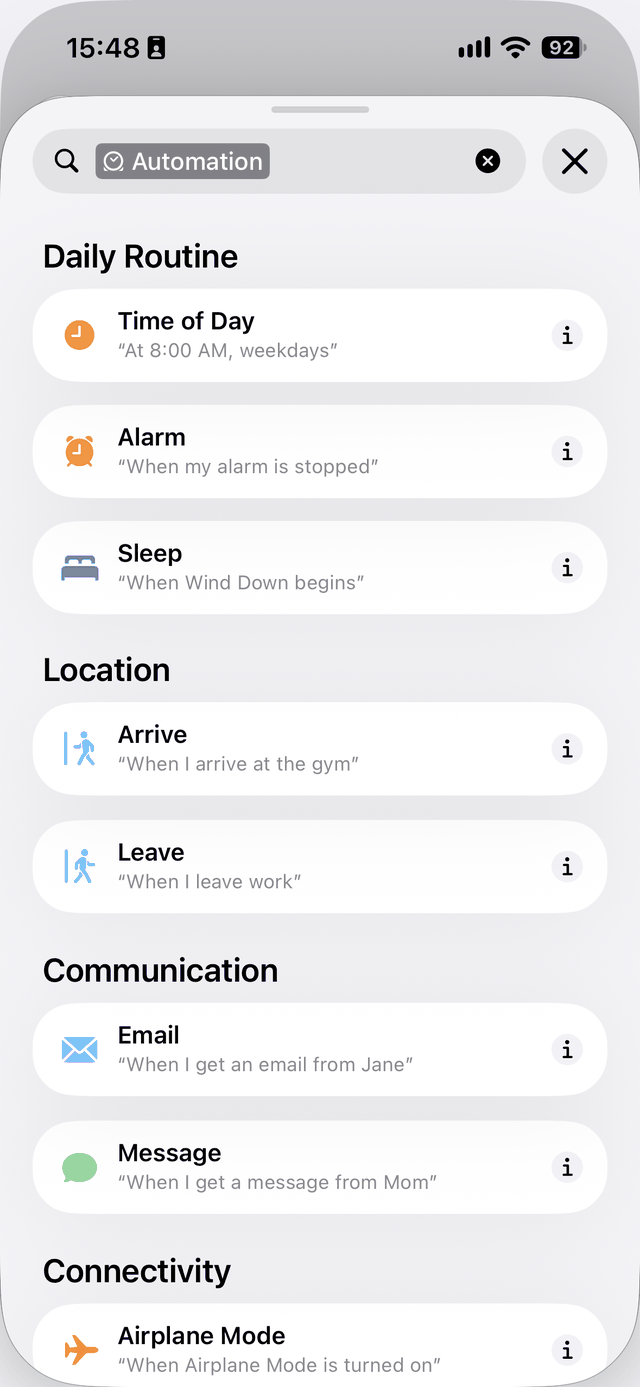
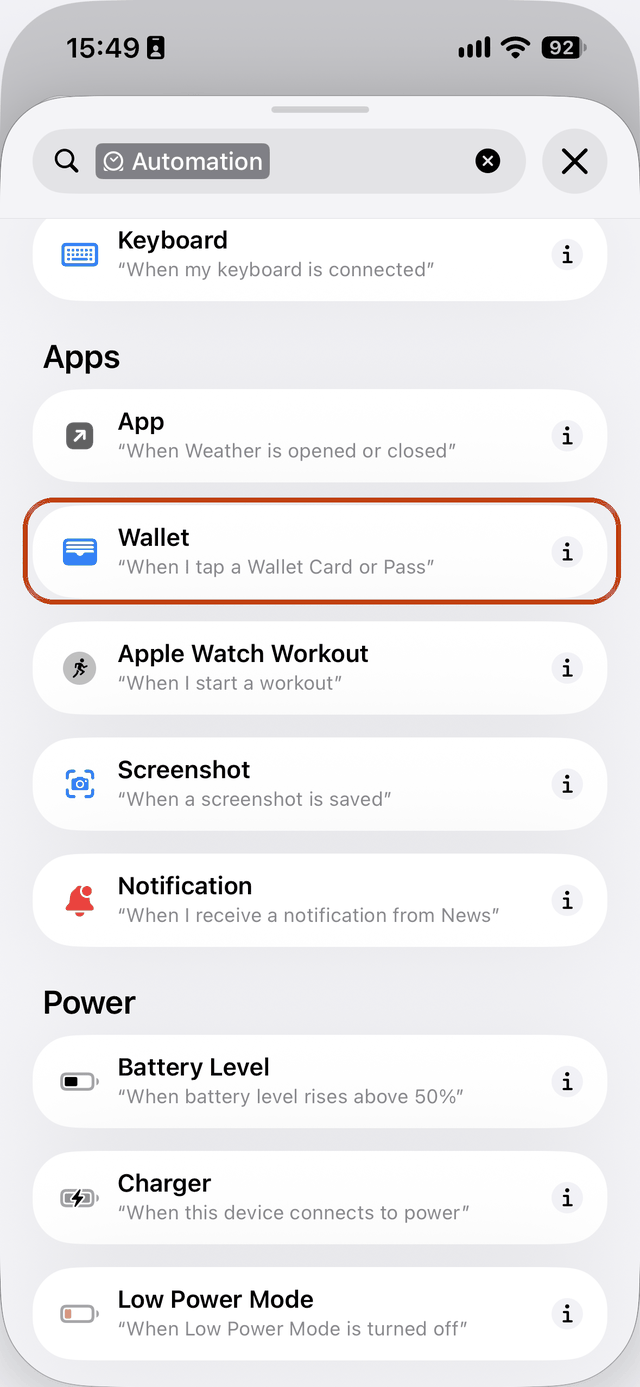
03 Scroll to Apps and pick Wallet
The triggers are grouped — Daily Routine, Location, Communication, and further down, Apps. The one you want is Wallet: “When I tap a Wallet Card or Pass”.
04 Any card, automatic, and quiet
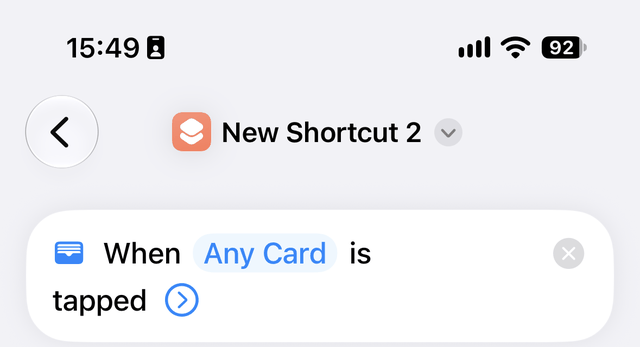
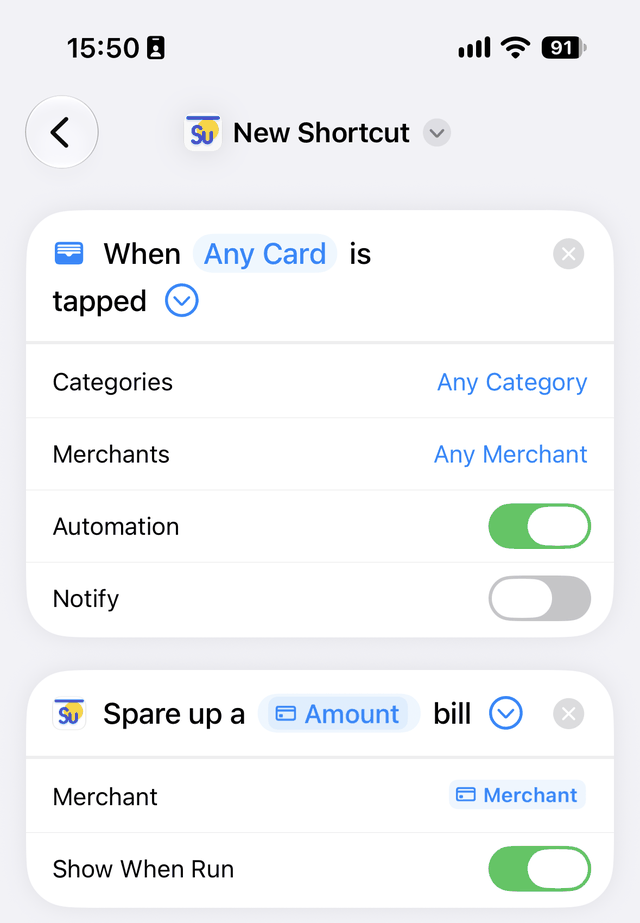
The trigger lands as “When Any Card is tapped”. Leave it on Any Card unless you have a reason not to — you can narrow it later.
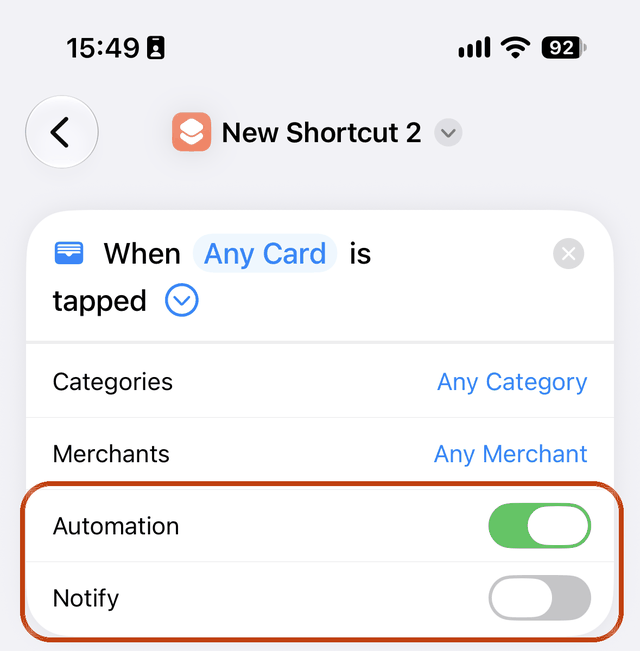
Now tap the arrow to expand it. Turn Automation on, which is what lets it run without asking you first, and turn Notify off.
That second switch matters more than it looks. Left on, you get a banner after every single purchase you make, forever — and the automation gets deleted inside a week. Off, nothing happens until Spare Up actually opens.
05 Add the Spare Up action
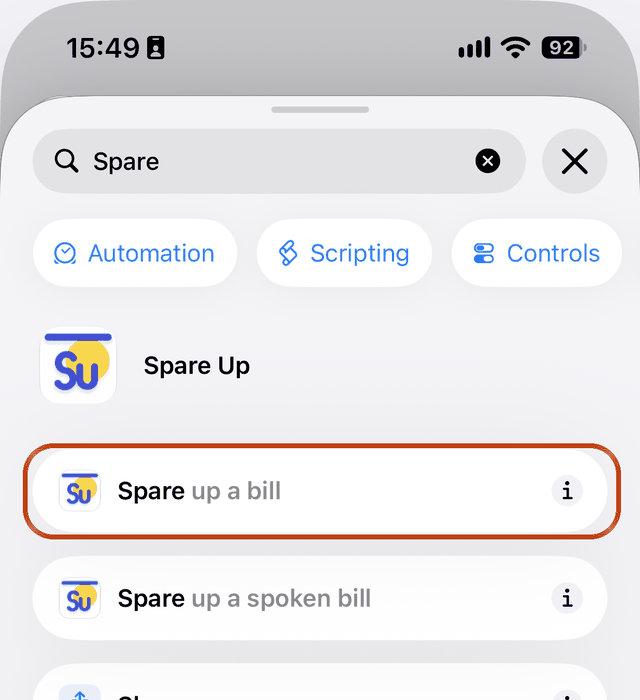
Search the action list for Spare. Two come back. Take Spare up a bill.
The other one — Spare up a spoken bill — belongs to Siri. It asks you out loud how much the bill was, which is the right question when you are talking to your phone and the wrong one here: you just paid, so your phone already knows.
06 Hand it the amount
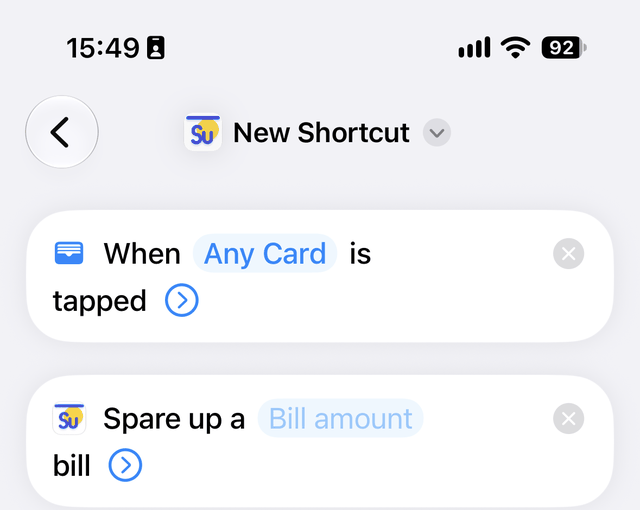
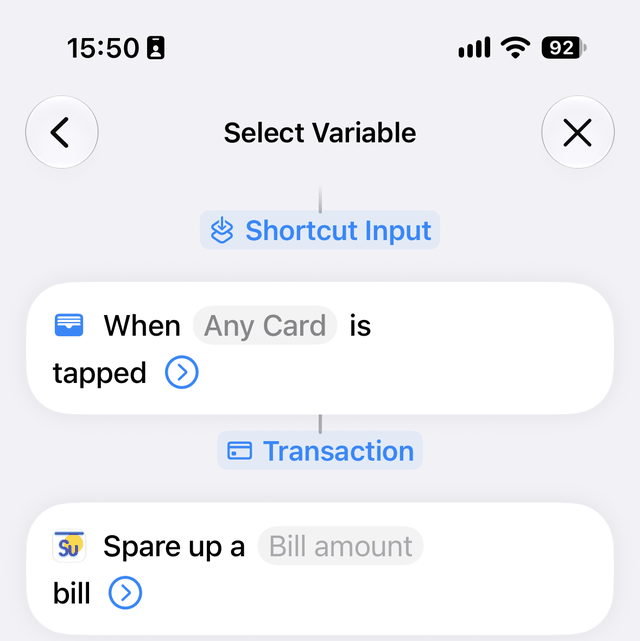
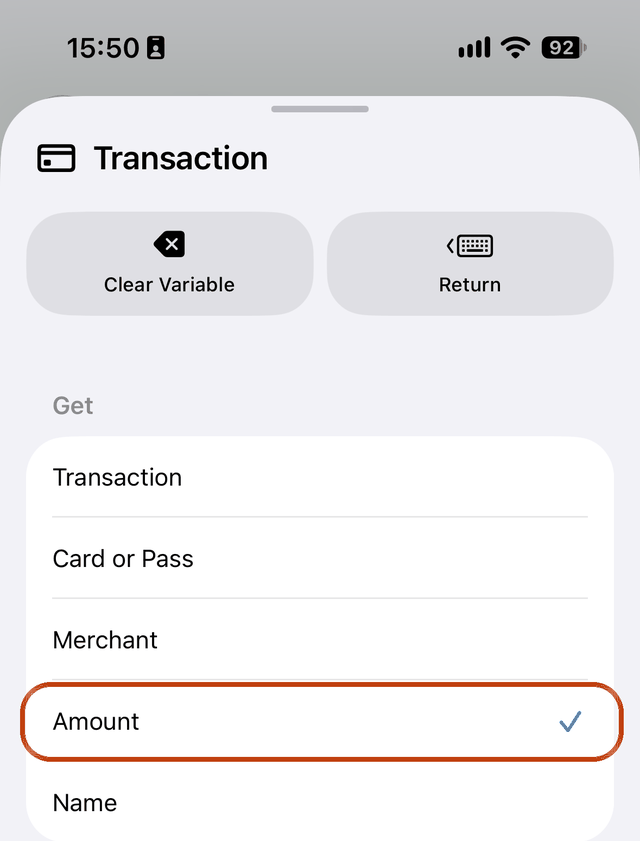
You now have two blocks: the trigger, and “Spare up a ▢ bill” with the amount still empty. Tap that empty field, choose the Transaction variable, and then drill into it: Get → Amount.
The drill-down is the step people miss. Stopping at Transaction hands over the whole transaction rather than the number in it, and the automation then opens Spare Up with nothing filled in.
Sometimes the amount or the merchant name does not come through from your bank right away. Spare Up opens with whatever arrived and asks you for the rest — one extra tap, same round up.
07 Get Merchant name
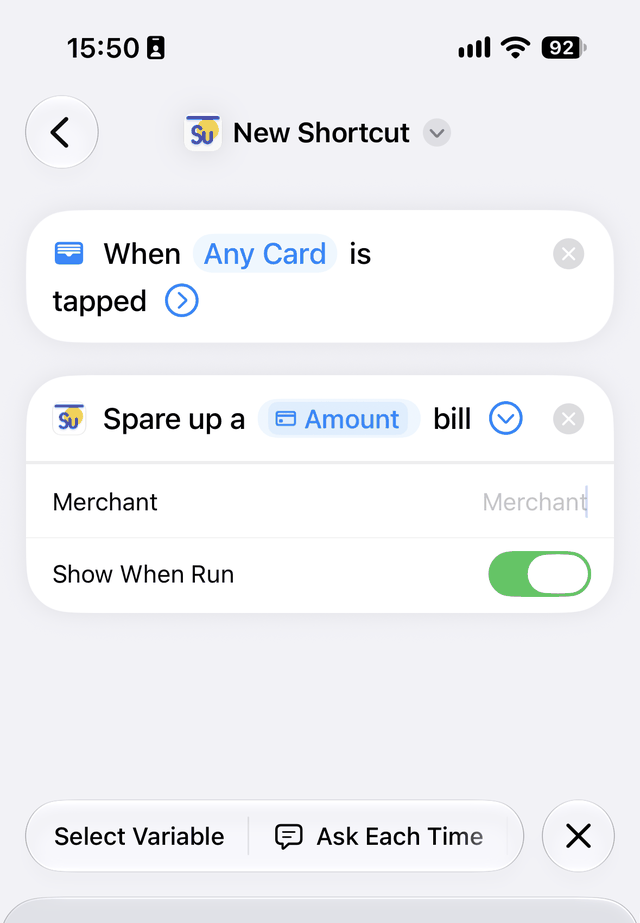
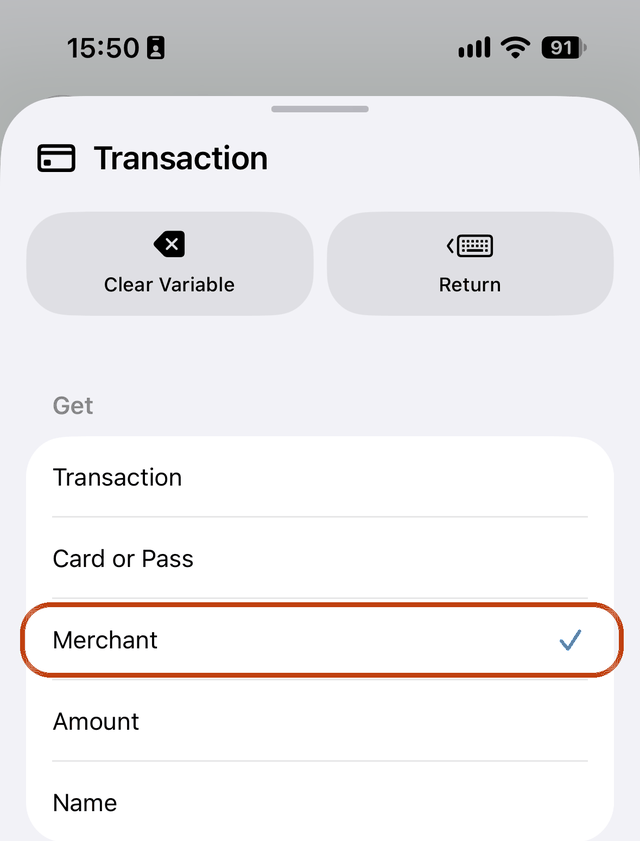
Expand the Spare Up action and set Merchant. Same variable, different field inside it: Transaction → Get → Merchant.
Watch that you land on Merchant and not on Transaction itself — the field will happily accept the whole transaction and then name your round up something unhelpful. Optional, but worth it: the round up arrives labelled with where you were, so you recognise it in your queue a week later instead of staring at a bare number.
08 That is the whole thing
Two blocks. A Wallet trigger set to any card, running automatically and quietly, and one Spare Up action holding the amount and the merchant. Nothing else to configure, nothing to remember.
09 What it looks like when it fires
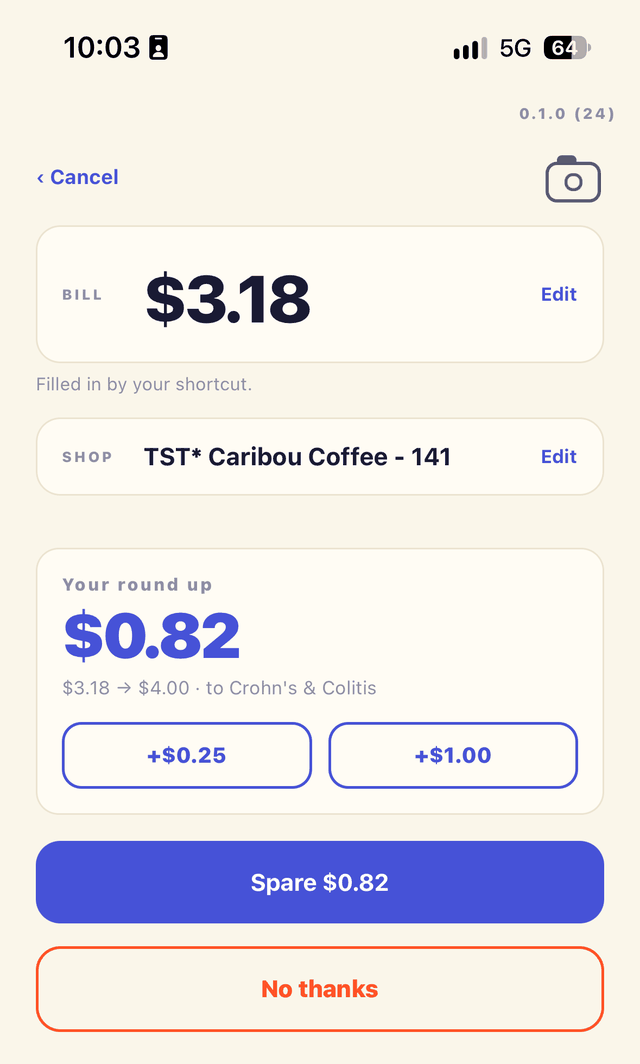
Buy something with Apple Pay. A moment after the purchase completes, Spare Up opens on the confirm screen with the bill already in place, the merchant name filled in, and your nonprofit already chosen. It even says where the number came from: “Filled in by your shortcut.”
Then it waits for you. Spare it, bump it by a quarter or a dollar, or tap No thanks and nothing happens at all — no round up, no record, no nagging. Either field can be corrected with Edit, which is worth knowing because a card network hands over the merchant name as the network has it, not as the sign outside says it.
10 Turning it off
Open the shortcut and delete it, or just switch Automation back off to pause it. It is your phone's shortcut, not ours: Spare Up cannot create it, change it, or see that it exists. Removing it has no effect on your account, your nonprofit or anything already queued — you just go back to scanning, screenshotting, asking Siri or typing.